
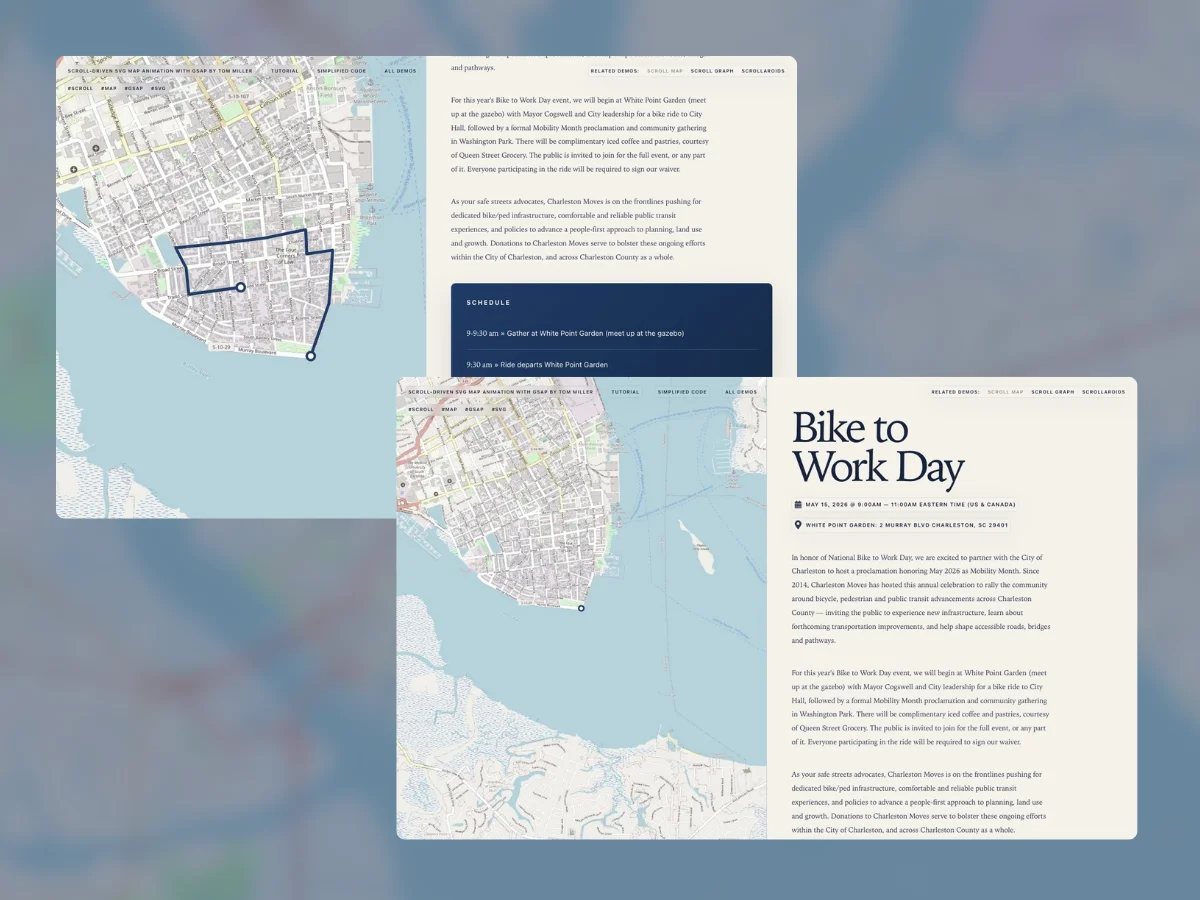
This tutorial will show you how to build an animated map using SVG and GSAP.js. The goal is to create an eye-catching interaction that is uncomplicated, lightweight, and doesn’t require the use of a third-party map API.
The Setup
We’ll use an SVG element to create our responsive stage. It contains:
- a map image,
- a path,
- circles marking the start and end of the route,
- and two groups for “camera” movement
GSAP draws the path, moves our point-of-view, and ties our timeline progress to scroll position. For this, you’ll need to include the following scripts:
- gsap.min.js
- ScrollTrigger.min.js
- DrawSVGPlugin.min.js
- MotionPathPlugin.min.js
Here’s a minimal demo with all of this working together.
Let’s break down the HTML and CSS before walking through the JS:
 (scroll down)


 (scroll up)
html, body {
margin:0;
padding:0;
font-family: "Open Sans", sans-serif;
overscroll-behavior: none;
}
section {
position:relative;
left:0;
top:0;
width:100%;
height:33vh;
display:flex;
align-items:center;
justify-content:center;
}
#s2 {
height:300vh;
}
.map {
position:absolute;
top:0;
width:100vw;
height:100vh;
}
We’ve got sections surrounding the SVG element just to give us some vertical scroll distance. To make the SVG responsive, we use the viewBox and preserveAspectRatio attributes. The former defines x/y coordinates and width/height aspect ratio for drawing the graphics. The latter sets the method for scaling and cropping. Actual width and height are applied in the CSS, and our SVG will fill the space accordingly.
To keep the code concise, several styling attributes are applied at the group-level and overwritten as needed. The path data was created by drawing over the map image in Illustrator, but you can use any SVG editor, or even code it by hand in the browser.
Lastly, we have circle elements, ‘.dot-start’ and ‘.dot-end’ to embellish the look of our route. The starting one has fixed cx and cy positioning, which matches the x and y values defined at the start of our path’s d attribute. “.dot-end” will be positioned dynamically in our JS. Speaking of…
gsap.timeline({
  scrollTrigger:{
    trigger: '#s2',
    start: '0 0',
    end: '100% 100%',
    pin: '.map',
    scrub:  1
  }
})
.from('.path', { drawSVG: '0 0' }, 0)
.to('.dot-end', { motionPath: '.path', immediateRender: true }, 0)

gsap.set('.pov', { x: 750, y: 750, scale: 2.5 })

gsap.set('.pov g', {
  x: -gsap.getProperty('.dot-end', 'x'),
  y: -gsap.getProperty('.dot-end', 'y')
})
We’ve created a timeline that scrubs along with the scroll progress of the section wrapping our SVG element. We are also pinning the SVG element while the timeline progresses. There are two, concurrent tweens in our timeline: one drawing the stroke of our path, and one moving the end circle along that path.
Notice we are forcing an immediate render of the end circle, and not waiting for the user’s scroll progress to start the timeline. This is necessary because that circle’s dynamically determined x/y position will factor into how we center our point-of-view. First the outer group is pushed to the center of the stage, where we can also set the scale to zoom in/out as desired. Then the inner group is shifted left and up using the inverse x/y position of the end circle, effectively moving everything to the center.
Moving the “Camera”
Now that we’ve established a solid foundation, let’s add some “camera” movement. To do this, we’ll create two gsap.quickTo() functions. These will tween the x/y position of our inner group based on the location of the end circle. It’s important to use quickTo() instead of gsap.to() because quickTo() is optimized to run frequently, and we are going to call these each time our timeline updates.
Let’s also add another layer of scroll-tethered motion by tweening the scale of our map. Rather than setting it once, adding a .fromTo() tween to our timeline allows us to set the outer group’s initial values and tween the scale over the course of our timeline’s progress.
Here’s the updated code:
const xTo = gsap.quickTo('.pov g', 'x', {duration:1, ease:'expo'});
const yTo = gsap.quickTo('.pov g', 'y', {duration:1, ease:'expo'});

gsap.timeline({
  scrollTrigger:{
    trigger: '#s2',
    start: '0 0',
    end: '100% 100%',
    pin: '.map',
    scrub:  1
  },
  onUpdate:()=>{ // Move inner group using the inverse position of dot-end
    xTo(-gsap.getProperty('.dot-end', 'x'));
    yTo(-gsap.getProperty('.dot-end', 'y'));
  }
})
.from('.path', { drawSVG: '0 0' }, 0)
.to('.dot-end', { motionPath: '.path', immediateRender: true }, 0)
.fromTo('.pov', { x: 750, y: 750, scale: 2.5 }, { scale: 4, ease:'power1.inOut' }, 0)

gsap.set('.pov g', {
  x: -gsap.getProperty('.dot-end', 'x'),
  y: -gsap.getProperty('.dot-end', 'y')
})
And here’s the enhanced demo.
Taking it Further
At this point, we’ve created a versatile setup that you can easily modify and extend. To start exploring your own customization, try changing the map image and drawn path. Instead of a map route, it could show the flow of nutrients in a plant diagram, or draw a squiggly arrow around and through your travel photos.
You could also add to the scroll-triggered timeline; more zooming in and out, playing with rotation, drawing multiple paths are just a few ideas that come to mind. The important thing is to position additional tweens with intention. The above demos have concurrent tweens with matching durations, but ultimately you might want some parts to begin sooner or finish later. Planning out and playing with the timeline is an iterative process, but a nice side effect of our setup is the ability to scrub forward and backward as much as you like.
Below are a few additional explorations to inspire you to make your own scrolling SVG scene:
