
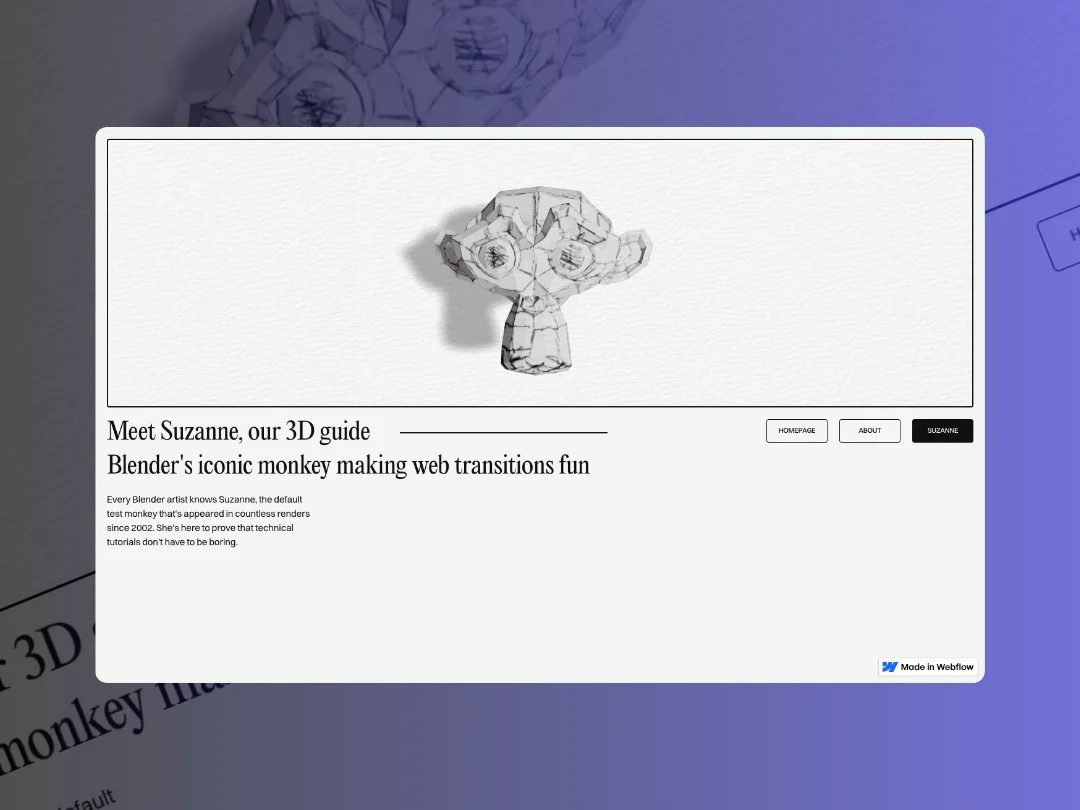
As I was learning web development, one thing I always loved was beautiful page transitions. Obviously, a well-made website is much more than that, but a smooth transition between pages will always elevate a site. GSAP and Barba.js allow us to do that easily in Webflow.
I’ve also been wanting to experiment with a specific hand-drawn 3D style for a while and thought I’d take this tutorial as an opportunity to finally try it. So the goal here is to transform a Webflow site into a gallery-style experience: a persistent 3D scene that never reloads, smooth page transitions, and animations that make navigation feel like moving through a single space rather than jumping between pages.
We’ll use Webflow for layout, GSAP (with SplitText) for text and UI animations, Three.js for the 3D scene, and Barba.js for page transitions. The JavaScript is built with Vite as a single bundle that you add as a script source in Webflow.
Let’s break it down in a few steps:
- Creating the models (Blender + Photoshop) — Hand-drawn style textures for our 3D objects
- Project setup — Dependencies and Vite config for Webflow
- Webflow markup — Data attributes that connect our layout to the JavaScript
- Three.js Experience — The core scene, camera, and renderer setup
- The 3D world — Models, lighting, and a shadow-receiving background
- Mouse interaction — Models that follow the cursor
- Barba integration — Wiring up page transitions
- GSAP transitions — Animating text in and out, and driving the camera
- Button hover effects — SplitText animation with reduced motion support
- Refinement & accessibility — Responsiveness, performance, and a few things to consider
Here’s the final result:
1. Creating the models (Blender + Photoshop)
The very first step was creating the 3D models. This hand-drawn style is actually pretty straightforward and I like that it gives the scene personality without relying on photorealism. In Blender, I modeled the objects with rough, simple geometry, no need for smooth subdivision surfaces. I unwrapped the UVs and exported the UV layout as a PNG. I opened that in Photoshop and drew directly on top of the UV lines. The key is that the texture reads as hand-drawn rather than procedural. One workflow tip that helped: I used a .psd as the image texture source in Blender. When I saved changes in Photoshop, Blender updated automatically. That made it easy to iterate without re-exporting my texture every time.
2. Project setup
I started from my Webflow JS template. It runs a local server and lets me use VS Code, Cursor, or any editor to write custom code for Webflow so I can bypass the native custom code limitations. Vite bundles everything into a single file. I then deploy that to Netlify and add the URL as a script source in Webflow.
3. Webflow markup
The canvas
I added a canvas element with the class .webgl. Three.js will attach its renderer here. This element should sit outside the Barba container so it never gets swapped when we navigate.
Barba structure
Wrap your page content in a div with data-barba="wrapper" (I added it directly on the body but you can create a specific element if you prefer) and data-barba="container". Barba will swap the contents of the container on each navigation. Something like:
Namespace per page
Set data-barba-namespace on the container. Each page gets a unique value: pen, cup, suzanne. I use my 3D model file names as namespaces. You could use page names instead, but this way it’s easier to see in the code which model is linked to which specific page. These strings are what we use to drive the camera (more on that in a bit).
Animation targets
I like using data attributes to query my animated elements in Webflow. I added data-animation="title" to heading elements, data-animation="text" to body text blocks, and data-animation="spacer" to any horizontal dividers or spacers I want to animate. Our GSAP code queries these and animates them on enter/leave.
4. Three.js Experience
I learned Three.js with Bruno Simon’s course and I’ve stuck with his class-based structure ever since. It keeps scene, camera, renderer, resources, and utilities in clear modules. You can adapt this to any boilerplate you want, the important part is having a single Experience instance that survives navigation.
The Experience class is a singleton. It holds the scene, sizes, time, resources, camera, renderer, and world. When resources are ready, we fade out the loader with a quick GSAP timeline:
// Experience.js
export default class Experience {
  constructor(canvas) {
    this.canvas = canvas
    this.scene = new THREE.Scene()
    this.resources = new Resources(sources, BASE_URL)

    this.progressContainer = document.querySelector('.loader__progress')
    this.progressBar = this.progressContainer.querySelector('.loader__progress-bar')

    this.resources.on('progress', (progress) => {
      this.progressBar.style.transform = `scaleX(${progress})`
    })

    this.resources.on('ready', () => {
      const loader = document.querySelector('.loader')

      gsap.timeline()
        .to(this.progressContainer, { scaleX: 0, duration: 1, delay: 1, ease: 'power4.inOut' })
        .to(loader, {
          opacity: 0,
          duration: 1,
          ease: 'power4.inOut',
          onComplete: () => { loader.style.display = 'none' }
        })
    })

    this.camera = new Camera()
    this.renderer = new Renderer()
    this.world = new World()
    // ... resize, update, etc.
  }
}
The Camera is a PerspectiveCamera positioned at (0, 0, 1). We animate camera.position.x for page transitions.
5. The 3D world
Once resources are ready, the World creates the background, models, and environment. The models are positioned along the X axis, the camera will slide between them as you navigate.
// World.js
this.resources.on('ready', () => {
  this.background = new Background()

  this.modelsGroup = new THREE.Group()
  this.scene.add(this.modelsGroup)

  const modelsConfig = [
    { name: 'pen', positionX: 0 },
    { name: 'cup', positionX: 3 },
    { name: 'suzanne', positionX: 6 }
  ]
  this.models = modelsConfig.map(({ name, positionX }) =>
    new Model(name, positionX, this.modelsGroup)
  )

  this.environment = new Environment()
})
Each Model clones the loaded GLB scene, places it in a group at positionX, and adds a nested mouseGroup for cursor-based movement. The mouseGroup holds the actual mesh, we’ll rotate and nudge it from the World’s update loop.
// Model.js
setModel() {
  this.model.traverse((child) => {
    if (child.isMesh) {
      child.castShadow = true
      child.receiveShadow = true
    }
  })
  this.mouseGroup.add(this.model)
  this.parent.add(this.group)
}
The Background is a large plane with ShadowMaterial set to opacity: 0.3, positioned slightly behind the models at z: -0.25. It receives shadows from the models and grounds the scene. ShadowMaterial is worth knowing about because it renders as fully transparent except where shadows fall. That means the plane itself is invisible, but the shadows it catches blend directly onto whatever is behind the canvas. No opaque background, no color matching needed. It’s a simple way to make the 3D scene feel like it lives on the page rather than inside a box.
To push this further, I added a paper texture as an image positioned absolutely behind the canvas, then set the canvas blending mode to multiply. This way the WebGL output blends with the paper grain underneath, and the models end up with this nice paper-craft look. Small tweaks like this sometimes make a big difference. In our case, it helps the 3D scene feel handmade rather than digital.
The Environment adds ambient and directional lights.
6. Mouse interaction
I wanted the models to react subtly to the cursor, nothing complicated. A single mousemove listener stores the offset from the center of the screen. Each frame we lerp toward target rotation and position values derived from that offset.
// World.js
setMouseMove() {
  document.addEventListener('mousemove', (event) => {
    const windowX = window.innerWidth / 2
    const windowY = window.innerHeight / 2
    this.mouseX = event.clientX - windowX
    this.mouseY = event.clientY - windowY
  })
}

update() {
  if (!this.models) return

  this.targetRotationX = this.mouseY * 0.0005
  this.targetRotationY = this.mouseX * 0.0005
  this.targetPositionX = this.mouseX * 0.000015
  this.targetPositionY = -this.mouseY * 0.000015

  this.currentRotationX += this.easeFactor * (this.targetRotationX - this.currentRotationX)
  this.currentRotationY += this.easeFactor * (this.targetRotationY - this.currentRotationY)
  // ... same for position

  this.models.forEach((model) => {
    model.mouseGroup.rotation.x = this.currentRotationX
    model.mouseGroup.rotation.y = this.currentRotationY
    model.mouseGroup.position.x = this.currentPositionX
    model.mouseGroup.position.y = this.currentPositionY
  })
}
The easeFactor of 0.08 controls how quickly the models catch up to the cursor. It’s worth experimenting with: a higher value makes the response feel snappy but can look jittery, while a lower value gives a smoother, floatier feel. I landed on 0.08 as a middle ground that feels responsive without being twitchy.
7. Barba integration
Barba drives the navigation. We define a single transition with once, leave, and enter hooks. The Experience is created once and reused for the whole session.
// main.js
barba.init({
  preventRunning: true,
  prevent: ({ href, event }) => {
    // Prevent navigation if link is the current page
    if (href === window.location.href) {
      event.preventDefault()
      event.stopPropagation()
      return true
    }
    return false
  },
  transitions: [{
    name: 'default-transition',
    once({ next }) {
      setActiveNavButton(next.url.href)
      experience = new Experience(document.querySelector('.webgl'))
      animateCameraToNamespace(next.namespace, experience)
    },
    leave(data) {
      setActiveNavButton(data.next.url.href)
      return transitionOut(data)
    },
    enter(data) {
      animateCameraToNamespace(data.next.namespace, experience)
      return transitionIn(data)
    }
  }]
})
once runs on the first page load: we create the Experience and animate the camera to the current namespace. leave runs before the DOM swap, we return the transitionOut promise so Barba waits for our animation to finish. enter runs after the new content is in place, we animate the camera to the new namespace and run transitionIn. The camera and the content animate in parallel, which is what makes it feel cohesive.
8. GSAP page transitions
The transition logic lives in animations.js. We use SplitText to break text into lines so we can stagger the animation, which feels much more organic than animating the whole block at once. For transitionOut, we animate titles and text lines upward (yPercent: -100), fade them out, and scale spacers to zero. The spacers use transformOrigin: 'right center' on leave so they shrink toward the right; on enter we use 'left center' so they grow from the left. Small detail, but it makes the direction feel intentional.
// animations.js
export function transitionOut(data) {
  return new Promise((resolve) => {
    const container = data?.current?.container
    const titleElements = container?.querySelectorAll('[data-animation="title"]') ?? []
    const textElement = container?.querySelector('[data-animation="text"]') ?? null
    const spacerElements = container?.querySelectorAll('[data-animation="spacer"]') ?? []

    let textLines = null
    if (textElement) {
      const split = new SplitText(textElement, { type: 'lines', linesClass: 'text-line' })
      textLines = split.lines ?? null
    }

    gsap.timeline({ onComplete: () => resolve() })
      .to(titleElements, {
        yPercent: -100,
        opacity: 0,
        duration: 0.8,
        ease: 'power4.in',
        stagger: 0.2,
      })
      .to(
        textLines && textLines.length ? textLines : textElement,
        {
          opacity: 0,
          yPercent: -100,
          duration: 0.8,
          ease: 'power4.in',
          stagger: 0.1,
        },
        0
      )
      .to(spacerElements, {
        scaleX: 0,
        duration: 0.8,
        ease: 'power4.in',
        transformOrigin: 'right center'
      }, 0)
  })
}
For transitionIn, we set initial states (elements below the fold with yPercent: 100, spacers at scaleX: 0 with transformOrigin: 'left center') then animate to their natural state. The easing switches to 'expo.out' for a snappy entrance, and each property group gets a slight delay, 0.2s for titles, 0.35s for text lines and spacers so the content cascades in rather than appearing all at once.
The camera animation is a simple GSAP tween. We map namespaces to X positions that match the model layout.
// animations.js
export const cameraPositionsByNamespace = {
  pen: 0,
  cup: 3,
  suzanne: 6
}

export function animateCameraToNamespace(namespace, experience = null) {
  if (!experience?.camera?.instance) return
  const targetX = cameraPositionsByNamespace[namespace] ?? 0
  gsap.to(experience.camera.instance.position, {
    x: targetX,
    duration: 2,
    ease: 'expo.inOut'
  })
}
9. Button hover effects
For the nav buttons, we use SplitText with type: 'chars' and create a “bottom” layer that slides up on hover. The effect: the top characters move up and away while the bottom duplicates slide into place. We also morph the borderRadius from 0.25rem to 0.5rem to soften the shape on hover. It’s a nice touch.
I wrapped everything in gsap.matchMedia so the effect only runs when the user hasn’t requested reduced motion:
// buttons.js
const mm = gsap.matchMedia()
mm.add('(min-width: 992px) and (prefers-reduced-motion: no-preference)', () => {
  const buttons = document.querySelectorAll('.button')
  buttons.forEach((button) => {
    const textWrapper = button.querySelector('.button__text-wrapper')
    const text = textWrapper.querySelector('.button__text')

    const split = new SplitText(text, { type: 'chars' })
    const chars = split.chars

    const bottomText = text.cloneNode(true)
    bottomText.classList.add('button__text--bottom')
    bottomText.style.position = 'absolute'
    bottomText.style.top = '0'
    bottomText.style.left = '0'
    bottomText.style.width = '100%'
    textWrapper.appendChild(bottomText)

    const splitBottom = new SplitText(bottomText, { type: 'chars' })
    const bottomChars = splitBottom.chars
    gsap.set(bottomChars, { yPercent: 100 })

    button.addEventListener('mouseenter', () => {
      gsap.to(button, { borderRadius: '0.5rem', duration: 0.8, ease: 'power4.out' })
      gsap.to(chars, { yPercent: -100, duration: 0.8, stagger: 0.02, ease: 'power4.out' })
      gsap.to(bottomChars, { yPercent: 0, duration: 0.8, stagger: 0.02, ease: 'power4.out' })
    })
    button.addEventListener('mouseleave', () => {
      gsap.to(button, { borderRadius: '0.25rem', duration: 0.8, ease: 'power4.out' })
      gsap.to(chars, { yPercent: 0, duration: 0.8, stagger: 0.02, ease: 'power4.out' })
      gsap.to(bottomChars, { yPercent: 100, duration: 0.8, stagger: 0.02, ease: 'power4.out' })
    })
  })
})
When prefers-reduced-motion: reduce is set, the callback never runs and the buttons behave normally. The min-width: 992px condition also means we skip the effect on smaller screens where hover interactions don’t apply.
10. Refinement
Responsiveness
The canvas needs to respond to layout changes. Rather than listening to window.resize, we use a Sizes utility with a ResizeObserver attached directly to the canvas element. When it resizes, we update the camera aspect ratio and the renderer size. The pixel ratio is also recalculated on resize, but capped at 2, anything higher tanks performance on retina screens without a visible difference.
Single Experience
The Three.js scene is created once on initial load and persists for the entire session. Barba only swaps the HTML inside the container; the canvas, the scene, and all loaded resources stay untouched. This means no re-initialization, no flickering, and no repeated network requests for models.
Model loading
Each GLB is loaded once through a Resources utility that uses Three.js’s GLTFLoader with DRACOLoader for compression. When we need a model in the scene, we clone its scene rather than loading it again. DRACO compression keeps the file sizes small, worth enabling if you’re shipping GLBs to production.
Final result
A Webflow site with a persistent Three.js scene, Barba.js page transitions, and GSAP-driven animations. The 3D world never reloads, and the camera slides between models as you navigate. Mouse-reactive models add a bit of life, and the loader plus reduced-motion support keep things polished.
A quick note on usability & accessibility
Motion sensitivity. Respect the user’s prefers-reduced-motion setting. We’ve done it for the button animations; you could extend the same approach to page transitions, either skip the GSAP animations for an instant swap, or use very short durations. A matchMedia check at the start of transitionOut and transitionIn can branch accordingly.
Semantic structure. Use proper headings and landmarks in Webflow. The 3D canvas is decorative, the actual content should be navigable and readable by assistive tech.
What’s next
You could extend the scene to feel like real spaces: room geometry, props, camera paths on page change. Or keep the camera fixed and animate/swap models instead. Or tie camera position to scroll for a parallax-like effect. Swap the GLB models for your own, adjust cameraPositionsByNamespace to match, tweak easings and stagger values.
Thanks for following along! I’m excited to see what you’ll create. If you have any questions, feel free to drop me a line.
