
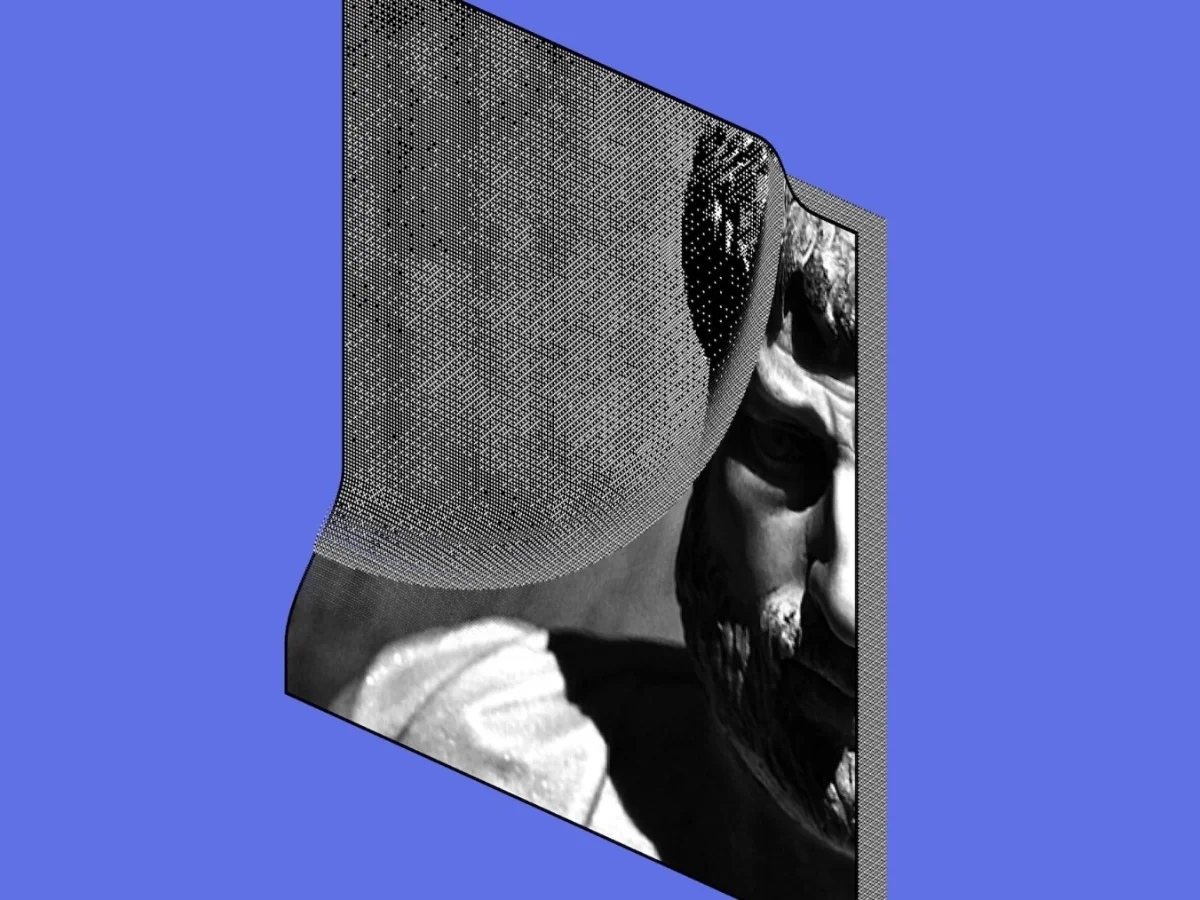
I’ve always seen myself as a visual learner, so I tend to visualize a concept or process in my mind whenever I learn about a new topic. I also love to share my learnings as a visual article on my blog, since I think it can be useful for others who also love to learn things visually.
In one of the posts, I talk about dithering, which is a process to reduce the number of colors in an image. To visualize the mechanism behind dithering, I mapped an image to a grid of 400 x 400 cubes and animate the color, position, and size of those 160,000 cubes simultaneously.
In this article, I’ll break down how I achieved this using Three.js custom shaders. By the end of this article, you’ll be able to animate thousands of objects in Three.js and hopefully be able to apply the same approach to a wide range of use cases.
But first, let’s discuss the background and motivation behind the visualization.
Background
In my opinion, animation is a great tool for visualizing a process. With animation, the reader can observe how an object’s state changes over time, making it clear exactly what a process does to that object.
For example, in one of the animations in my article, I try to illustrate what dithering does to a pixel: you compare a pixel’s color with a threshold, then change the color accordingly.
Using animation, readers can observe how the color of pixels changes as they go through the threshold map. It gives them visual guidance on how dithering works and lets them see how it affects the image pixels’ color.
The animation above only involves the modification of three properties: position, color, and scale. However, the challenge arises when we have to do this for all 160,000 cubes at the same time.
For each animation frame, we have to calculate and update 160,000 (cubes) x 3 (properties) = 480,000 properties.
And this is where the custom shader in Three.js really helps!
Instead of looping through each cube’s properties on the CPU and updating them one by one, we can create a single set of instructions in a custom shader that defines the color, position, and scale for every cube simultaneously. These instructions run directly on the GPU, calculating the state of all 160,000 cubes at the same time. This is what keeps the animation fluid and responsive.
Now, let’s move on to the implementation part.
Implementation
1. Setup Three.js
First, let’s set up our Three.js scene and camera. This is a quite standard Three.js setup, so I will not explain it too much. The complete code for this step is available in the repository on the setup-three-js branch.
Throughout this tutorial, you can find the complete code for each step by checking out its respective branch.
Result
When you run the code at this point, you will see this blank scene.

Next, let’s start adding our objects (the cubes) to the scene.
2. Draw the Cubes
The code for this step is available at the draw-cubes branch.
I created a Grid class to handle the logic of drawing the cubes and position them in a grid arrangement. It also has a helper function to help us show and hide the grid from the scene.
Here are what we’re going to do at this step:
- Calculate the position of each cube in the grid.
- Draw the cubes using Three.js
InstancedMesh. - Write a simple
vertexShaderandfragmentShaderfor the cubes. - Add the cubes to our scene.
Note: Throughout the code, I’ll refer to the individual units that form the grid (in our case, the cubes) as “cells.” So, when you see
cellin the code, just know it refers to a cube.
Calculate the cubes’ position
Before we create our cubes, first we need to prepare their positions in the grid. The calculateCellProperties function on the Grid class is handling this:
calculateCellProperties(gridProperties) {
    // ...

    // Calculate position and center the grid around center
    const x = (columnId - (columnCount - 1) / 2) * cellSpacing;
    const y = (-rowId + (rowCount - 1) / 2) * cellSpacing;
    const z = 0;

    // ...
}
Draw the cubes
Next, we can start creating our cubes. Here I’m using InstancedMesh with a simple BoxGeometry and a simple ShaderMaterial. Don’t forget to update each instance’s position based on the positions we calculated in the previous step.
// ...

const geometry = new THREE.BoxGeometry(cellSize, cellSize, cellThickness);

const material = new THREE.ShaderMaterial({
      vertexShader,
      fragmentShader,
    });

const mesh = new THREE.InstancedMesh(
      geometry,
      material,
      this.cellProperties.length // Number of instances
    );

//Update Cell Position for each instance
for (let i = 0; i < this.cellProperties.length; i++) {
   const { x, y, z } = this.cellProperties[i];

   const objectRef = new THREE.Object3D();
   objectRef.position.set(x, y, z);
   objectRef.updateMatrix();

   mesh.setMatrixAt(i, objectRef.matrix);
}

mesh.instanceMatrix.needsUpdate = true;

// ...
Write the vertexShader and fragmentShader
Let’s now create a simple shader to draw the cubes with a single color.
vertexShader.glsl
void main() {
    vec3 cellLocalPosition = vec3(position);

    vec4 cellWorldPosition = modelMatrix * instanceMatrix * vec4(cellLocalPosition, 1.0);

    gl_Position = projectionMatrix * viewMatrix * cellWorldPosition;
}
fragmentShader.glsl
void main() {
    vec3 color = vec3(0.7); // Set a default color for now

    gl_FragColor = vec4(color, 1.0);
}
Initiate the grid and add it to the scene
Finally, let’s initiate our grid and add it to the scene. You can do this in the index.js:
//Init grid and show it on the scene
const grid = new Grid({
  name: "grid",
  rowCount: 400,
  columnCount: 400,
  cellSize: 1,
  cellThickness: 0.5,
});
grid.showAt(scene);
Result
At this stage you should see a big grey square in your screen. It may look like a big square for now, but they’re actually formed of 400×400 cubes!

3. Animating Cubes’ Z-Position
The code for this step is available at the animate-z-position branch.
Right now, all of the cubes in our grid have a fixed z-position. In this step, we are going to update our codes so that the cubes can move across z-axis dynamically.
Here’s a list of things we’ll do:
- Define variables for storing the range for cubes’ z-positions and animation progress.
- Calculate the cubes’ positions based on the animation progress value.
- Add a Tweakpane panel to change the value with a slider.
Define z-position range and animation progress variables
Uniforms are variables that we can use to send values from our JavaScript code to our shaders. Here, we will need two uniforms:
uZPositionRange, which will store the starting and ending points of our cubes.uAnimationProgress, which will store the animation progress and will be used to calculate the position of our cubes at z-axis.
First, define these two uniforms in Grid.js
const material = new THREE.ShaderMaterial({
      // ...

      // Define uniforms for the shader
      uniforms: {
        uZPositionRange: { value: this.gridProperties.zPositionRange ?? new THREE.Vector2(0, 0) },
        uAnimationProgress: { value: 0 },
      },
});
Calculate the cubes position
Next, use these two uniforms in our vertexShader to calculate the final z-position for each cube.
uniform vec2 uZPositionRange; // Range for z position animation (start and end)
uniform float uAnimationProgress; // Animation progress (0.0 to 1.0) to control the z position animation

void main() {
    // ...

    // Calculate the z position start and end position based on the uniform values
    float zPositionStart = uZPositionRange.x;
    float zPositionEnd = uZPositionRange.y;

    // Smoothen the z position animation progress using smoothstep
    float zPositionAnimationProgress = smoothstep(0.0, 1.0, uAnimationProgress);

    // Update the world z position of the cell based on the zPositionAnimationProgress value
    cellWorldPosition.z += mix(zPositionStart, zPositionEnd, zPositionAnimationProgress);

    // ...
}
Note that we apply a smoothstep function to smoothen the cubes’ movement. This will make the cubes move slower at the beginning and the end of animation.
Finally, add the default value the cubes’ z-position range in index.js:
const grid = new Grid({
  // ...

  // New properties: zPositionRange
  zPositionRange: new THREE.Vector2(20, -20),
});
This will first position our cubes at when uAnimationProgress is 0. As the value of uAnimationProgress changes to 1, the cubes will gradually move to .
To animate the cubes, we just need to update the value of our uAnimationProgress using an animation library like GSAP. For this tutorial, however, I just set up a slider using Tweakpane so that we can play with the animation progress freely.
Add animation panel
Now let’s add a debug panel to allow us to change the animation progress and immediately observe the result. We’re going to use Tweakpane library here. In the index.js, add this following code:
// Init Tweakpane
const pane = new Pane({ title: 'Settings', expanded: true });
pane.registerPlugin(EssentialsPlugin);

// ...

// Create Animation Folder
const animationFolder = pane.addFolder({ title: 'Animation' });

// Add Progress Slider to control animation progress
const progressSlider = animationFolder.addBlade({
  view: 'slider',
  label: 'Progress',
  value: 0,
  min: 0,
  max: 1,
  step: 0.01,
});
progressSlider.on('change', (ev) => {
  // Update the shader uniform with the new animation progress value
  grid.material.uniforms.uAnimationProgress.value = ev.value;
});
Result
Now we have animatable cubes which we can control using the Tweakpane slider. See how the grid moves as the value of animation progress changes.
At this point our animation doesn’t look really impressive. It looks as if we are just moving a big square, even though we actually just animated 160,000 cubes at the same time! Let’s now change this by adding slight delay for each cube.
4. Adding Per-Cube Animation Delay
The code for this step is available at the add-per-cube-animation-delay branch.
The idea here is to add a bit of animation delay for each cube based on its normalized cell index (ranging from 0 to 1), so that they move at slightly different times.
The first cube will move as soon as the animation progress > 0. The next cube will move a bit later, when the animation progress > (cell index * max delay value). The delay will gradually increase until the last cube, whose cell index is 1, moves after the animation progress > max delay value. This, in turn, will create a gradual movement like a wavy effect in our animation.
To implement this we are going to:
- Calculate the normalized cell index for each cube.
- Create an
InstancedBufferAttributeto hold each cube’s cell index. - Use the cell index attribute to calculate a delay factor for each cube in the
vertexShader. - Add a “max delay” slider in Tweakpane.
Calculate the cell index
To do this, we can first calculate the cell index (normalized from 0 to 1) in the calculateCellProperties in Grid.js.
calculateCellProperties(gridProperties) {
    // ...
    for (let i = 0; i < objectCount; i++) {
      // ...
      properties[i].cellIdNormalized = i / (objectCount - 1); // Normalize cellId to [0, 1] range
      // ...
    }
    // ...
}
Assign cell index to InstancedBufferAttribute
Next, create a Float32Array version of our cellIdNormalized variable, and assigned it to an InstancedBufferAttribute object. Then add the attribute to the geometry using setAttribute function.
const attributes = {
      aCellIdNormalized: new THREE.InstancedBufferAttribute(
        new Float32Array(this.cellProperties.map((prop) => prop.cellIdNormalized)),
        1
      )
    };

geometry.setAttribute("aCellIdNormalized", attributes.aCellIdNormalized);
Calculate the delay for each cube
The delay for each cube is calculated as cell index * maximum delay. The last cube will wait until the animation progress > maximum delay before moving, and it will finish when the animation progress is 1. This means the moving duration for the last cube is (1 - maximum delay). We will then apply this same moving duration to all cubes.
For example, if we set our maximum delay to 0.9, the first cube will start moving at animation progress > 0, and arrive at its final position at animation progress = 0.1.
The delay will gradually increase for the following cubes, and the last cube (cell index = 1) will have delay equal to the maximum delay (0.9). It starts moving at animation progress > 0.9 and finishes at animation progress = 1.
To implement this in our vertexShader:
// ...

// New uniform to store animation max delay
uniform float uAnimationMaxDelay;

// New attribute (InstancedBufferAttribute) to store the normalized cell index
attribute float aCellIdNormalized;

void main() {
    //Calculate delay and duration for each cube animation
    float delayFactor = aCellIdNormalized;
    float animationStart = delayFactor * uAnimationMaxDelay;
    float animationDuration = 1.0 - uAnimationMaxDelay;
    float animationEnd = animationStart + animationDuration;

    // ...

    // Update the zPositionAnimationProgress
    // Animations will start at animationStart and end at animationEnd value for each cube
    float zPositionAnimationProgress = smoothstep(animationStart, animationEnd, uAnimationProgress);

    // ...
}
Add max delay variable to tweakpane
Finally, let’s also add the max delay variable to Tweakpane so that we can change them easily.
// Add Progress Slider to control animation progress
const animationDelay = animationFolder.addBlade({
  view: 'slider',
  label: 'Max Delay',
  value: grid.material.uniforms.uAnimationMaxDelay.value,
  min: 0.05,
  max: 1,
  step: 0.01,
});
animationDelay.on('change', (ev) => {
  grid.material.uniforms.uAnimationMaxDelay.value = ev.value;
});
Result
See how we now have a wavy effect in our grid animation. Try playing with the max delay variable and see how it impacts the shape of the wave.
5. Adding More Delay Type Variations
The code for this step is available at the add-delay-variation branch.
Next, let’s try adding different effects to our grid animation. We can do this by using different delay factors to calculate our final delay. In this step we are going to:
- Create
InstancedBufferAttributeto store normalized row and column indices. - Use the row and column indices to make different types of delay factors.
- Add options to choose delay type in the Tweakpane panel
Store normalized row and column index
Just like before, we can calculate the normalized row and column index in the calculateCellProperties function, then assign them to the geometry via InstancedBufferAttribute.
calculateCellProperties(gridProperties) {
    // ...

    for (let i = 0; i < objectCount; i++) {
      // ...

      // Calculate normalized row and column index (0 to 1)
      properties[i].rowIdNormalized = rowId / (rowCount - 1);
      properties[i].columnIdNormalized = columnId / (columnCount - 1);
    }

    // ...
  }

// ...

const attributes = {
   // ...

   // Create InstancedBufferAttribute to store normalized row index
   aRowIdNormalized: new THREE.InstancedBufferAttribute(
      new Float32Array(this.cellProperties.map((prop) => prop.rowIdNormalized)),
      1
   ),
   // Create InstancedBufferAttribute to store normalized column index
   aColumnIdNormalized: new THREE.InstancedBufferAttribute(
      new Float32Array(this.cellProperties.map((prop) => prop.columnIdNormalized)),
      1
   ),
};

// ...

geometry.setAttribute("aColumnIdNormalized", attributes.aColumnIdNormalized);
Define delay types
In the vertexShader, create multiple options of delay factor and set the one used based on the value of DELAY_TYPE constant.
#ifdef DELAY_TYPE
    #if DELAY_TYPE == 1
        // Cell Index - based delay
        float delayFactor = aCellIdNormalized;
    #elif DELAY_TYPE == 2
        // Row-based delay
        float delayFactor = aRowIdNormalized;
    #elif DELAY_TYPE == 3
        // Column-based delay
        float delayFactor = aColumnIdNormalized;
    #elif DELAY_TYPE == 4
        // random-based delay
        float delayFactor = random(vec2(aColumnIdNormalized, aRowIdNormalized));
    #elif DELAY_TYPE == 5
        // delay based on distance from the top-left corner;
        float delayFactor = distance(vec2(aRowIdNormalized, aColumnIdNormalized), vec2(0, 0));
        delayFactor = smoothstep(0.0, 1.42, delayFactor);
    #else
        // No delay
        float delayFactor = 0.0;
    #endif
#else
    // Default to no delay if DELAY_TYPE is not defined
    float delayFactor = 0.0;
#endif
In Grid.js, assign the default value for the DELAY_TYPE constant:
const material = new THREE.ShaderMaterial({
      // ...

      // Set DELAY_TYPE value in material defines
      defines: {
        DELAY_TYPE: 1,
      },

      // ...
    });
Add delay type options in Tweakpane
Finally, add options to choose the delay type in our Tweakpane panel. Remember that we need to recompile the shader every time we change the defines value after the material is initiated. We can do this by updating the material.needsUpdate flag to true.
//Add Dropdown to select delay type
const delayTypeController = animationFolder.addBlade({
  view: 'list',
  label: 'Delay Type',
  options: {
    'Cell by Cell': 1,
    'Row by Row': 2,
    'Column by Column': 3,
    'Random': 4,
    'Corner to Corner': 5,
  },
  value: grid.material.defines.DELAY_TYPE,
});

delayTypeController.on('change', (ev) => {
  grid.material.defines.DELAY_TYPE = ev.value;
  grid.material.needsUpdate = true;
});
Result
We now have different animation effect that we can choose for our grid! Play with different delay type and see how the animation effect changes.
6. Adding Image Texture
The code for this step is available at the add-image-texture branch.
Now it’s time to add an image onto our grid. Here’s what we’re going to do at this stage:
- Load an image texture and assign it to a shader uniform.
- Sample the texture to color the cubes based on their row and cell index.
- Add a border to the image grid.
Load image texture
In Grid.js, add a texture loader to load an image and add it to the texture uniform once it’s loaded.
// ...

const material = new THREE.ShaderMaterial({
      // ...
      uniforms: {
        // ...
        uTexture: { value: null }, // Placeholder for texture uniform
      },
    });

// Load image to material.uniforms.uTexture if the image path is provided
if (this.gridProperties.image) {
   const textureLoader = new THREE.TextureLoader();
   textureLoader.load(
      this.gridProperties.image,
      (texture) => {
          texture.colorSpace = THREE.SRGBColorSpace;
          material.uniforms.uTexture.value = texture;
          material.needsUpdate = true;
      }
   );
}

// ...
Set the path to the image we want to use in the index.js:
import imageUrl from './image/dithering_object.jpg';

// ...

const grid = new Grid({
  // ...
  image: imageUrl, // Path to the image to be used in the grid
});

// ...
Now we’re ready to read the image in our shader.
Sample the texture to color the cube
Usually, an image texture is sampled in the fragment shader based on the mesh UV coordinates. But in this case, we are drawing the image over our grid, not over a single mesh. For this reason, we’ll sample the texture using the cube’s row and column index. The resulting color is then passed to the fragment shader to color the cube.
in the vertexShader:
// ...

// Sample the texture to get the color for the current cell
float imageColor = texture2D(uTexture, vec2(aColumnIdNormalized, 1.0 - aRowIdNormalized)).r;
float finalColor = imageColor;

// ...

vColor = vec3(finalColor); //Send the final color to the fragment shader
in the fragmentShader:
void main() {
    vec3 color = vColor; // Use the color passed from the vertex shader

    // ...
}
Add image border
Next let’s add a border to our image grid. We can do this by setting the cube’s color to black if it’s on the grid’s edge.
// ...

//Add border
float borderThreshold = 0.005; // Adjust this value to control the thickness of the border

// Check if the cube is on the grid's edge
float borderX = step(aColumnIdNormalized, borderThreshold) + step(1.0 - borderThreshold, aColumnIdNormalized);
float borderY = step(aRowIdNormalized, borderThreshold) + step(1.0 - borderThreshold, aRowIdNormalized);
float isBorder = clamp(borderX + borderY, 0.0, 1.0);

// update color to black if it's on the grid's edge
finalColor = mix(finalColor, 0.0, isBorder);

// ...
Result
Now you will see the image is drawn over our grid! See how the image waves as we change the animation progress.
7 – Adding The Dithering Effect
The code for this step is available at the add-dithering-effect branch.
Finally, we enter our main function: adding the dithering effect. Dithering is done by comparing the pixel value with a threshold available in a threshold map. I will not discuss the logic in detail here; you can check my visual article if you want to understand how it work in more detail.
Here’s what we’re going to do in this step:
- Create a variable to hold the threshold map options.
- Calculate the threshold for a cube by looking up the threshold map based on the cube’s row and column index.
- Assign the threshold to an
InstancedBufferAttribute. - Compare the final color of the cube against the threshold; turn the cube white if it’s brighter than the threshold, and black otherwise.
Create a threshold maps variable
In Grid.js, create a variable to hold the threshold maps. Here I create several types of threshold maps, which will create different dithering effects.
class Grid {
  constructor(gridProperties) {
    // ...

    this.thresholdMaps = [
      {
        id: "bayer4x4",
        name: "Bayer 4x4",
        rows: 4,
        columns: 4,
        data: [
          0, 8, 2, 10,
          12, 4, 14, 6,
          3, 11, 1, 9,
          15, 7, 13, 5
        ]
      },
      {
        id: "halftone",
        name: "Halftone",
        rows: 8,
        columns: 8,
        data: [
          24, 10, 12, 26, 35, 47, 49, 37,
          8, 0, 2, 14, 45, 59, 61, 51,
          22, 6, 4, 16, 43, 57, 63, 53,
          30, 20, 18, 28, 33, 41, 55, 39,
          34, 46, 48, 36, 25, 11, 13, 27,
          44, 58, 60, 50, 9, 1, 3, 15,
          42, 56, 62, 52, 23, 7, 5, 17,
          32, 40, 54, 38, 31, 21, 19, 29
        ]
      },
      // ... other threshold maps goes here ...

// ...
Calculate the threshold for each cube
In calculateCellProperties, calculate the threshold for each cube and store it in a new properties. Different threshold maps will return different thresholds, so we will store each threshold in their own threshold map key.
  calculateCellProperties(gridProperties) {
    // ...

    for (let i = 0; i < objectCount; i++) {
      // ...
      properties[i].thresholdMaps = {}; // Prepare an object to hold threshold map values for this cell

      // Store threshold value for all threshold maps variant
      this.thresholdMaps.forEach(config => {
            const { data, rows: matrixRowSize, columns: matrixColumnSize } = config;
            const matrixSize = data.length;
            const matrixRow = rowId % matrixRowSize;
            const matrixColumn = columnId % matrixColumnSize;
            const index = matrixColumn + matrixRow * matrixColumnSize;

            const thresholdValue = data[index] / matrixSize; // Normalize threshold to [0, 1]

            properties[i].thresholdMaps[config.id] = thresholdValue;
      });

    }
Assign the threshold to InstancedBufferAttribute
In Grid.js, assign the thresholdMaps properties to their own InstancedBufferAttribute, then assign them to aDitheringThreshold geometry attribute.
There will only be one threshold map that can be used at a time, so let’s choose a bayer4x4 threshold map as a default.
  init() {
    // ...

    const attributes = {
      // ...
      aDitheringThresholds: {} // Prepare an object to hold threshold map attributes
    };

    this.thresholdMaps.forEach(config => {
      attributes.aDitheringThresholds[config.id] = new THREE.InstancedBufferAttribute(
        new Float32Array(this.cellProperties.map((prop) => prop.thresholdMaps[config.id])),
        1
      );
    });
    // ...
    geometry.setAttribute("aDitheringThreshold", attributes.aDitheringThresholds.bayer4x4); // Using bayer4x4 as the default threshold map for now
Compare cube’s original color to the threshold
In the vertexShader, add logic to compare the original color of the cube against the assigned threshold, then turns the cube white if it’s brighter than the threshold, and black if otherwise. Control the transition from original to dithered color by the animation progress, so it happens as the cube moves across the z-axis.
// ...

// Sample the texture to get the color for the current cell
float imageColor = texture2D(uTexture, vec2(aColumnIdNormalized, 1.0 - aRowIdNormalized)).r;

// Compare the image color with the dithering threshold to determine if the cell should be "white" or "black"
float ditheringThreshold = aDitheringThreshold;
float ditheredColor = step(ditheringThreshold, imageColor);

// Calculate the progress of the color animation for each cell
float colorAnimationProgress = smoothstep(animationStart, animationEnd, uAnimationProgress);

// Change the color of the cell based on the calculated animation progress,
float finalColor = mix(imageColor, ditheredColor, colorAnimationProgress);

// ...
Add threshold map options on Tweakpane
Finally, let’s add the threshold map options on Tweakpane so we can switch between different maps easily.
// Create Dithering Folder
const ditheringFolder = pane.addFolder({ title: 'Dithering' });

const activeThresholdMaps = {
  value: 'bayer4x4',
};

const ditheringThresholdController = ditheringFolder.addBinding(activeThresholdMaps, 'value', {
  view: 'radiogrid',
  groupName: 'ditheringThreshold',
  size: [2, 2],
  cells: (x, y) => ({
    title: `${grid.thresholdMaps[y * 2 + x].name}`,
    value: grid.thresholdMaps[y * 2 + x].id,
  }),
  label: 'Threshold Map',
})

ditheringThresholdController.on('change', (ev) => {
  grid.geometry.setAttribute("aDitheringThreshold", grid.attributes.aDitheringThresholds[ev.value]);
});
Result
Move the animation slider and observe how now the cubes transitions to the dithered version as it moves. Play with different types of the threshold map to see the different dithering effects.
8. Adding a Threshold Map Grid
The code for this step is available at the add-threshold-map-grid branch.
At this point, we have a working visualization showing the transition from the original to the dithered image. Next let’s add a threshold map and make the cubes pass through it as they undergo the dithering process.
In this stage we will:
- Update the
vertexShaderto add a new grid type: threshold map. - Add a threshold map grid to the scene.
- Add Tweakpane control to show and hide the image and the threshold map grids.
Add new gridType
In the vertexShader, add new #if blocks for two grid type options. If GRID_TYPE == 1, we’ll use our current image logic. If GRID_TYPE == 2, we will color it based on the aDitherThreshold attribute.
// ...

#ifdef GRID_TYPE
    #if GRID_TYPE == 1
        // ... (existing logic for image grid)
    #elif GRID_TYPE == 2
        // New logic for Threshold Map grid
        float finalColor = aDitheringThreshold;
// ...
In Grid.js, add the default defines value for GRID_TYPE:
    const material = new THREE.ShaderMaterial({
      // ...
      defines: {
        // ...
        GRID_TYPE: this.gridProperties.gridType ?? 1,
      },
      // ...
    });
Add threshold map grid to the scene
In index.js, initiate the threshold map grid and add it to the scene. Place it in the middle by setting its zPositionRange to (0,0).
const thresholdMapGrid = new Grid({
  name: "thresholdMapGrid",
  rowCount: 400,
  columnCount: 400,
  cellSize: 1,
  cellThickness: 0.1,
  gridType: 2,
  zPositionRange: new THREE.Vector2(0, 0),
});
thresholdMapGrid.showAt(scene);
Add Tweakpane control to show and hide grid
// Create Image Grid Settings Folder
const imageGridFolder = pane.addFolder({ title: 'Image Grid' });

const showImageGrid = imageGridFolder.addBinding({show: true}, 'show', {
  label: 'Show',
});

showImageGrid.on('change', (ev) => {
  if (ev.value) {
    grid.showAt(scene);
  } else {
    grid.hideFrom(scene);
  }
});

// Create Threshold Map Grid Settings Folder
const thresholdMapGridFolder = pane.addFolder({ title: 'Threshold Map Grid' });

const showThresholdMapGrid = thresholdMapGridFolder.addBinding({show: true}, 'show', {
  label: 'Show',
});

showThresholdMapGrid.on('change', (ev) => {
  if (ev.value) {
    thresholdMapGrid.showAt(scene);
  } else {
    thresholdMapGrid.hideFrom(scene);
  }
});
Fix Image Animation Timing
If you open the demo at this point, you may notice a flaw: the cube’s color starts changing as soon as it moves. We want the color to change only after the cube passes through the threshold map.
To fix this, update the function of colorAnimationProgress in the vertexShader:
#ifdef GRID_TYPE
    #if GRID_TYPE == 1
        // ...

        float colorAnimationStart = animationStart + animationDuration * 0.5; // Start color animation halfway through the z-position animation, when it reach the threshold map
        float colorAnimationEnd = colorAnimationStart + 0.01; // End color animation as soon as it pass the threshold map

        float colorAnimationProgress = smoothstep(colorAnimationStart, colorAnimationEnd, uAnimationProgress);

// ...
Result
Now you will see a threshold map in the middle, which the cubes pass through as they move.
9. Add Scale Animation
The code for this step is available at the add-scale-animation branch.
Now we have one more problem: the threshold map hides the output image. To fix this, we’ll make the threshold map disappear as the cubes pass through. Here is what we’ll do at this step:
- Add cube scale animation in the
vertexShader. - Set threshold map scale to 1 at the beginning and 0 at the end of the animation.
- Sync the animation progress slider with the threshold map animation progress.
Adding cube scale animation
Similar with how we animate the z-position and color, we can create a new uniform uCellScaleRange to store the start and ending scale. Use the uniform to calculate the cube’s final scale In vertexShader:
// ...
uniform vec2 uCellScaleRange; // Range for cell scale animation (start and end)
// ...

void main() {
    float cellScaleStart = uCellScaleRange.x;
    float cellScaleEnd = uCellScaleRange.y;
    float cellScaleAnimationProgress = smoothstep(animationStart, animationEnd, uAnimationProgress);
    float cellScale = mix(cellScaleStart, cellScaleEnd, cellScaleAnimationProgress);

    vec3 cellLocalPosition = vec3(position);
    cellLocalPosition *= cellScale;

// ...
then add the default value in Grid.js:
    const material = new THREE.ShaderMaterial({
      // ...
      uniforms: {
        // ...
        uCellScaleRange: { value: this.gridProperties.cellScaleRange ?? new THREE.Vector2(1, 1) },
        // ...
      },
    });
Define the start and end scale
In index.js, set the scale range for both image grid and threshold map grid. Since we don’t want to change the scale of the image grid, we set it as (1, 1). For the threshold map grid, we set it to (1,0) so it vanishes by the end of the animation.
const grid = new Grid({
  // ...
  cellScaleRange: new THREE.Vector2(1, 1), // property to control cell scale animation
});

// ...

const thresholdMapGrid = new Grid({
  // ...
  zPositionRange: new THREE.Vector2(0, -20),
  cellScaleRange: new THREE.Vector2(1, 0), // property to control cell scale animation
});

// ...
Sync threshold map animation progress on Tweakpane
Update the all the animation-related sliders (delay type, progress, max delay) to also change the animation variables for thresholdMapGrid. This will sync the animation for both image grid and threshold map grid together.
// ...

delayTypeController.on('change', (ev) => {
  grid.material.defines.DELAY_TYPE = ev.value;
  grid.material.needsUpdate = true;

  thresholdMapGrid.material.defines.DELAY_TYPE = ev.value;
  thresholdMapGrid.material.needsUpdate = true;
});

// ...

animationDelay.on('change', (ev) => {
  grid.material.uniforms.uAnimationMaxDelay.value = ev.value;
  thresholdMapGrid.material.uniforms.uAnimationMaxDelay.value = ev.value;
});

// ...

progressSlider.on('change', (ev) => {
  grid.material.uniforms.uAnimationProgress.value = ev.value;
  thresholdMapGrid.material.uniforms.uAnimationProgress.value = ev.value;
});

// ...
Result
Now see how the threshold map disappears as the cubes pass through.
10. Add Min Delay Variable
The code for this step is available at the add-min-delay-variable branch.
There’s still one thing to fix: the threshold map actually starts moving at the same time as the image grid. We want the threshold map grid to move only when the cubes are about to pass through it.
To fix this, we’re going to add an initial delay to the threshold map grid, so that they don’t move immediately as the animation progress increases.
We are going to implement this logic:
- Add initial delay variable to the animation start in the
vertexShader. - Update min and max delay values for the image and threshold map grids.
- Sync Tweakpane delay slider with both grids’ delay variables
Add initial delay variable in the vertexShader
In the vertexShader, update the animation start to factor the initial delay.
// ...
uniform float uAnimationMinDelay; // Minimum delay for the animation.

// ...
float animationStart = mix(uAnimationMinDelay, uAnimationMaxDelay, delayFactor);
// ...
Next update the default value for the min and max delay uniforms in the Grid.js:
const material = new THREE.ShaderMaterial({
    // ...
    uniforms: {
    // ...
    uAnimationMinDelay: { value: this.gridProperties.animationMinDelay ?? 0 }, // Minimum delay for the animation in % of duration.
    uAnimationMaxDelay: { value: this.gridProperties.animationMaxDelay ?? 0.9 }, // Maximum delay for the animation in % of duration.
    // ...
    },
});
Set min and max delay for the image and threshold map grid
Update the min and max delay values in index.js:
//Init grid and show it on the scene
const grid = new Grid({
  // ...
  animationMinDelay: 0, // property for minimum animation delay
  animationMaxDelay: 0.9, // property for maximum animation delay
});

// ...

const thresholdMapGrid = new Grid({
  // ...
  animationMinDelay: 0.05, // property for minimum animation delay
  animationMaxDelay: 0.95, // property for maximum animation delay
});

// ...
Here’s how I arrived at these numbers:
- We want the
thresholdMapGridto move only when the cubes are about to pass through it. - The cubes will pass the threshold map at the halfway point of their path.
- Therefore, we can set the threshold map grid’s initial delay to half of a cube’s animation duration.
- The cube’s animation duration = (1 – Max Delay) = (1 – 0.9) = 0.1.
- The threshold map grid’s min delay equals to half of the cube’s animation duration = 0.05
- All of the threshold map grid’s delay should be offset by 0.05, including its max delay, which results in 0.95.
Sync delay slider on Tweakpane
Finally, apply the above logic on Tweakpane:
animationDelay.on('change', (ev) => {
  grid.material.uniforms.uAnimationMaxDelay.value = ev.value;

  const animationDuration = 1.0 - ev.value;
  thresholdMapGrid.material.uniforms.uAnimationMinDelay.value = animationDuration * 0.5;
  thresholdMapGrid.material.uniforms.uAnimationMaxDelay.value = ev.value + animationDuration * 0.5;
});
This would keep the image grid and threshold map grid animation in sync when the max delay value changes.
Result
That’s all! That was our final step.
Now it’s time to play with the demo: try a different threshold map or play with the animation parameters to change the dithering result and the animation effect!
Wrapping Up
In this article, we discussed how Three.js can be a powerful tool to animate thousands of objects with ease. In this case, I use it to visualize the mechanism behind dithering. However, I believe we can use this approach to visualize many other concepts.
The actual implementation for other use cases might differ, but in principle, it will involve defining the initial and ending states for an object, then calculating the current state based on the animation progress. The important thing is to offload these calculations to the GPU using custom shaders if the animation involves a large number of objects.
This is the same approach I’ve taken for other visual articles at my blog, visualrambling.space, where I try to explain various technical concepts using visualizations made with Three.js.
While Three.js is typically used for landing page visuals or web-based games, I think it can also be a great tool for creating interactive web-based visual explainers like this. So I hope this article is useful and inspires you to make your own.
Thank you for reading!
