
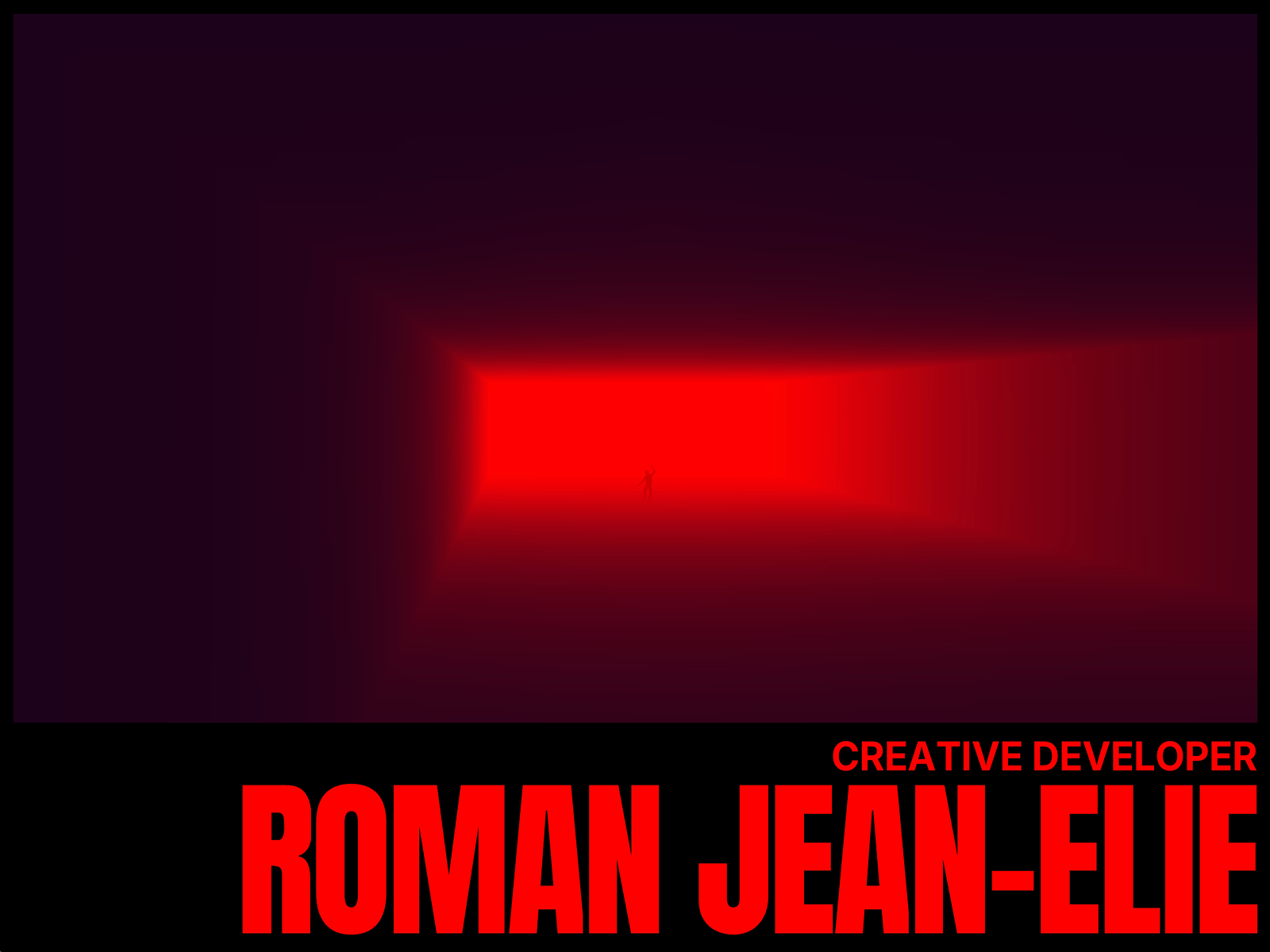
This case study walks through the entire creative process I went through while building my website.
It is organized into five chronological steps, each representing a key stage in the project’s development and the decisions that shaped the final result. You’ll see how what I initially thought would be the centerpiece almost became optional, while several features disappeared entirely because they didn’t fit the visual direction that emerged.
The most exciting part of this process was watching things reveal themselves organically, guiding the creative journey rather than dictating it from the start. I had to stay patient and attentive to understand what atmosphere was taking shape in front of me.
I recorded videos along the way to remind myself, on difficult days, where I came from and to appreciate the evolution. I want to be transparent and share these captures with you, even though they’re completely work-in-progress and far from polished. I find it more interesting to see how things evolve.
At first, I wanted to add a WebGL fold effect because it was something I’d tried to master during my first mission five years ago with Impossible Bureau but couldn’t manage well. I remembered there was already a case study by Davide Perozzi on Codrops who did a great walkthrough to explain the effect, so based on that, I replicated the effect and added the ability to fold along both axes.
To make the fold happen in any direction, we have to apply vector projection to redistribute the curl effect along an arbitrary direction:
The curlPlane function transforms a linear position into a curved position using circular arc mathematics. By projecting each vertex position onto the desired fold direction using the dot product, applying the curl function to that one-dimensional value, and then redistributing the result back along the direction vector, the effect gained complete directional freedom.
To make the fold effect more realistic, I added a subtle fake shadow based on the curvature amount. The idea is simple: the more the surface curls, the darker it becomes.
This simple technique adds a subtle sense of depth without requiring complex lighting calculations, making the fold feel more three-dimensional and physically grounded.
This is how I thought I would have my first main feature in the portfolio, but at this point, I didn’t know I was wrong and the journey was just getting started…
While playing with this new fold effect for different layouts and animations on my homepage, I also built a diffraction effect on text (which ultimately didn’t make it into the final portfolio, I may write a separate tutorial about it). As I experimented with these two effects, I suddenly wanted to make a screen appear in the center. And I still don’t know exactly why, but I also wanted a character inside.
For a long time, I’d wanted to play with 3D characters, bones, and animations. This is how my 3D character first appeared in the journey. Initially, I wanted to make him talk, so I added subtitles and different actions. The character and animations came from Mixamo.
For embedding the 3D scene within a bounded area, I used the MeshPortal technique. Instead of rendering to the full canvas, I created a separate scene that renders to a render target (FBO), then displayed that texture on a plane mesh with a custom mask shader.
The portal shader uses a uMask uniform (a vec4 representing left, right, bottom, top bounds) to clip the rendered texture, creating that precise “screen within a screen” effect:
While playing with this setup, I realized it would be interesting to animate the screen between section transitions, changing its placement, size, and the 3D scene (camera position, character actions, cube size…).
But this required solving three connected challenges:
Let me walk you through how I built each piece.
The Challenge: The portal needed to adapt to different positions and sizes on each page while staying responsive.
The Solution: I created a system that tracks DOM element bounds and converts them to WebGL coordinates. In each section, I placed a reference
Then I created a hook to track this div’s bounds and normalize them to viewport coordinates (0-1 range):
// Normalize DOM bounds to viewport coordinates (0-1 range)
export function normalizeBounds(bounds, dimensions) {
  return {
    x: bounds.x / dimensions.width,
    y: bounds.y / dimensions.height,
    width: bounds.width / dimensions.width,
    height: bounds.height / dimensions.height,
  };
}

// Track the reference div and register its bounds for each section
useResizeObserver(() => {
  const dimensions = { width: window.innerWidth, height: window.innerHeight };
  const bounds = redSquareRef.current.getBoundingClientRect();
  const normalizedBounds = normalizeBounds(bounds, dimensions);

  setRedSquareSize(sectionName, {
    x: normalizedBounds.x,
    y: normalizedBounds.y,
    width: normalizedBounds.width,
    height: normalizedBounds.height,
  });
});
These normalized bounds are then converted to match the shader’s vec4 uMask format (left, right, bottom, top):
function calculateMaskValues(size) {
  return {
    x: size.x,                          // left
    y: size.width + size.x,             // right
    z: 1 - (size.height + size.y),      // bottom
    w: 1 - size.y,                      // top
  };
}
B. Hash-Based Section Navigation with Smooth Transitions
Now that I could track portal positions, I needed a way to navigate between sections smoothly.
Since my portfolio has only a few main areas (Home, Projects, About, Contact), I decided to structure them as sections rather than separate pages, using hash-based routing to navigate between them.
Why hash-based navigation?
- Keeps the entire experience in a single page load
- Allows smooth crossfade transitions between sections
- Maintains browser history for back/forward navigation
- Stays accessible with proper URL states
The Setup: Each section has a unique id attribute that corresponds to its hash route:
...
...
...
...
The useSectionTransition hook handles this routing while orchestrating simultaneous in/out animations:
export function useSectionTransition({ onEnter, onExiting, data } = {}) {
  const ref = useRef(null);
  const { currentSection, isLoaded } = useStore();
  const prevSectionRef = useRef(currentSection);
  const hasEnteredOnce = useRef(false);

  useEffect(() => {
    if (!isLoaded) return;
    const sectionId = ref.current?.id;
    if (!sectionId) return;

    const isCurrent = currentSection === sectionId;
    const wasCurrent = prevSectionRef.current === sectionId;

    // Transition in
    if (isCurrent && !wasCurrent && hasEnteredOnce.current) {
      onEnter?.({ from: prevSectionRef.current, to: currentSection, data });
      ref.current.style.pointerEvents = "auto";
    }

    // Transition out (simultaneous, non-blocking)
    if (!isCurrent && wasCurrent) {
      onExiting?.({ from: sectionId, to: currentSection, done: () => {}, data });
      ref.current.style.pointerEvents = "none";
    }

    prevSectionRef.current = currentSection;
  }, [currentSection, isLoaded]);

  return ref;
}
How it works: When you navigate from section A to B, section A’s onExiting callback fires immediately while section B’s onEnter fires at the same time, creating smooth crossfaded transitions.
The hash changes are pushed to the browser history, so the back/forward buttons work as expected, keeping the navigation accessible and consistent with standard web behavior.
C. Bringing It All Together: Animating the Portal
With both the bounds tracking system and section navigation in place, animating the portal between sections became straightforward:
updatePortal = (size, duration = 1, ease = "power3.out", delay = 0) => {
  const maskValues = calculateMaskValues(size);
  gsap.to(portalMeshRef.current.material.uniforms.uMask.value, {
    ...maskValues,
    duration,
    ease,
    delay,
  });
};

// In my section transition callbacks:
onEnter: () => {
  updatePortal(redSquareSize.about, 1.2, "expo.inOut");
}
This system allows the portal to seamlessly transition between different sizes and positions on each section while staying perfectly responsive to window resizing.
The Result
Once I had this system in place, it became easy to experiment with transitions and find the right layouts for each page. Through testing, I removed the subtitles and kept a void ambiance with just the character alone in a big space, animating only a few elements to make it feel stranger and more contemplative. I could even experiment with a second portal for split screen effects (which you’ll see didn’t stay…)
3. Let’s Make Things Dance
While testing different character actions, I finally decided to make the character dance throughout the navigation. This gave me the idea to create dynamic motion effects to accompany this dance.
For the Projects page, I wanted something simple that highlights the clients I’ve worked with and adds an organic scroll effect. By rendering project titles as WebGL textures, I experimented with several parameters and quickly created this simple yet dynamic stretch effect that responds to scroll velocity.
Velocity-Based Stretch Shader
The vertex shader creates a sine-wave distortion based on scroll velocity:
uniform vec2 uViewportSizes;
uniform float uVelocity;
uniform float uScaleY;

void main() {
  vec3 newPosition = position;
  newPosition.x *= uScaleX;
  vec4 finalPosition = modelViewMatrix * vec4(newPosition, 1.0);

  // Calculate stretch based on position in viewport
  float ampStretch = 0.009 * uScaleY;
  float M_PI = 3.1415926535897932;

  vProgressVisible = sin(finalPosition.y / uViewportSizes.y * M_PI + M_PI / 2.0)
                     * abs(uVelocity * ampStretch);

  // Apply vertical stretch
  finalPosition.y *= 1.0 + vProgressVisible;

  gl_Position = projectionMatrix * finalPosition;
}
The sine wave creates smooth distortion where:
- Text in the middle of the screen stretches most
- Text at top/bottom stretches less
- Effect intensity scales with
uVelocity
The velocity naturally decays after scrolling stops, creating a smooth ease-out effect that feels organic.
Adding Depth with Velocity-Driven Lines
To complement the text stretch and enhance the sense of depth in the cube containing the character, I added animated lines to the fragment shader that also respond to scroll velocity. These lines create a parallax-like effect that reinforces the feeling of depth as you scroll.
The shader creates infinite repeating lines using a modulo operation on normalized depth:
void main() {
    float normalizedDepth = clamp((vPosition.z - minDepth) / (maxDepth - minDepth), 0.0, 1.0);

    vec3 baseColor = mix(backColor, frontColor, normalizedDepth);

    // Create repeating pattern with scroll-driven offset
    float adjustedDepth = normalizedDepth + lineOffset;
    float repeatingPattern = mod(adjustedDepth, lineSpacing);
    float normalizedPattern = repeatingPattern / lineSpacing;

    // Generate line with asymmetric smoothing for directionality
    float lineIntensity = asymmetricLine(
        normalizedPattern,
        0.2,
        lineWidth * lineSpread * 0.2,
        lineEdgeSmoothingBack * 0.2,
        lineEdgeSmoothingFront * 0.2
    ) * 0.4;

    vec3 amplifiedLineColor = lineColor * 3.0;
    vec3 finalColor = mix(baseColor, amplifiedLineColor, clamp(lineIntensity, 0.0, 1.0));

    ...
}
The magic happens on the JavaScript side, where I animate the `lineOffset` uniform based on scroll position and adjust the blur based on velocity:
const updateLinesOnScroll = (scroll, velocity) => {
  // Animate line offset with scroll
  lineOffsetRef.current.value = (scroll * scrollConfig.factorOffsetLines) % lineSpacingRef.current.value;

  // Add motion blur based on velocity
  lineEdgeSmoothingBackRef.current.value = 0.2 + Math.abs(velocity) * 0.2;
};
How it works:
- The `lineOffset` uniform moves in sync with scroll position, making lines appear to flow through the cube
- The `lineEdgeSmoothingBack` increases with scroll velocity, creating motion blur on fast scrolls
- The modulo operation creates infinite repeating lines without performance overhead
- Asymmetric smoothing (different blur on front/back edges) gives the lines directionality
4. Think Outside the Square
At this point, I had my portal system, my character, and the infinite scroll working well. But I struggled to find something original and surprising for the contact and about pages. Simply changing the screen portal’s position felt too boring, I wanted to find something new. For several days, I tried to think “outside the cube.”
That’s when it hit me: the screen is just a plane. Let’s play with it as a plane, not as a screen.
Morphing the Plane into Text
This idea led me to the effect for the about page: transforming the plane into large letter shapes that act as a mask.
In the video above, you can see black lines representing the two SVG paths used for the morph effect: the starting rectangle and the target text mask. Here’s how this effect is constructed:
The Concept
The technique uses GSAP’s MorphSVG to transition between two SVG paths:
- Starting path (
rectPath): A simple rectangle with a 1px stroke outline, with intermediate points along each edge for smooth morphing - Target path (
rectWithText): A filled rectangle with the text cut out as a “hole” using SVG’sfill-rule: evenodd
Both paths are automatically sized to match the text dimensions, ensuring a seamless morph.
Converting Text to SVG and Generating the Starting Path
I created a custom hook using the text-to-svg library to generate the text as an SVG path, along with a rectangular border path:
const { svgElement, regenerateSvg } = useTextToSvg(
  "WHO",
  {
    fontPath: "/fonts/Anton-Regular.ttf",
    addRect: true,                    // Generate the rectangle border path
  },
  titleRef
);
The hook automatically:
- Converts the text into an SVG path
- Matches the DOM element’s computed styles (fontSize, lineHeight) for pixel-perfect alignment
Creating the Target Path: Rectangle with Text Hole
After the hook generates the basic paths, I create the target path by combining the rectangle outline with the text path using SVG’s fill-rule: evenodd:
// Get the text path from the generated SVG
const textPath = svgRef.current.querySelector("#text");
const textD = textPath.getAttribute("d");

// Get dimensions from the text bounding box
const bbox = textPath.getBBox();

// Combine: outer rectangle + inner text (which creates a hole)
const combinedPath = [
  `M ${bbox.x} ${bbox.y}`,       // Move to top-left
  `h ${bbox.width}`,              // Horizontal line to top-right
  `v ${bbox.height}`,             // Vertical line to bottom-right
  `h -${bbox.width}`,             // Horizontal line to bottom-left
  'Z',                            // Close rectangle path
  textD                           // Add text path (creates the hole)
].join(' ');

rectWithTextRef.current = document.createElementNS("http://www.w3.org/2000/svg", "path");
rectWithTextRef.current.setAttribute('d', combinedPath);
rectWithTextRef.current.setAttribute('fill', '#000');
rectWithTextRef.current.setAttribute('fill-rule', 'evenodd');  // Critical for creating the hole
The fill-rule: evenodd is the key here, it treats overlapping paths as holes. When the rectangle path and text path overlap, the text area becomes transparent, creating that “cut-out” effect.
Why GSAP’s MorphSVG Plugin?
Morphing between a simple rectangle and complex text shapes is notoriously difficult. The paths have completely different point counts and structures. GSAP’s MorphSVG plugin handles this intelligently by:
- Analyzing both paths and finding optimal point correspondences
- Using the intermediate points to create smooth transitions
- Using
type: "rotational"to create a natural, spiraling morph animation
The Performance Challenge
Once the morph was working, I hit a performance wall. Morphing large SVG paths with many points caused visible frame drops, especially on lower-end devices. The SVG morph was smooth in concept, but rendering complex text paths by constantly updating SVG DOM elements was expensive. I needed 60fps, not 30fps with stutters.
The Solution: Canvas Rendering
GSAP’s MorphSVG has a powerful but lesser-known feature: the render callback. Instead of updating the SVG DOM on every frame, I could render the morphing path directly to an HTML5 canvas:
gsap.to(rectPathRef.current, {
  morphSVG: {
    shape: rectWithTextRef.current,
    render: draw,                    // Custom canvas renderer
    updateTarget: false,             // Don't update the SVG DOM
    type: "rotational"
  },
  duration: about.to.duration,
  ease: about.to.ease
});

// Canvas rendering function called on every frame
function draw(rawPath, target) {
  // Clear canvas
  ctx.save();
  ctx.setTransform(1, 0, 0, 1, 0, 0);
  ctx.clearRect(0, 0, canvas.width, canvas.height);
  ctx.restore();

  // Draw the morphing path
  ctx.fillStyle = "#000";
  ctx.beginPath();

  for (let j = 0; j < rawPath.length; j++) {
    const segment = rawPath[j];
    ctx.moveTo(segment[0], segment[1]);

    // Draw bezier curves from the morphing path data
    for (let i = 2; i < segment.length; i += 6) {
      ctx.bezierCurveTo(
        segment[i], segment[i + 1],
        segment[i + 2], segment[i + 3],
        segment[i + 4], segment[i + 5]
      );
    }

    if (segment.closed) ctx.closePath();
  }

  ctx.fill("evenodd");  // Use evenodd fill rule on canvas too
}
The draw callback receives the interpolated path data at each frame and renders it onto canvas using bezier curves. This approach:
- Bypasses expensive SVG DOM manipulation
- Leverages canvas’s hardware-accelerated rendering
- Maintains 60fps even with 100+ point paths
Key Lesson: The render callback in MorphSVG is incredibly powerful for optimization. Canvas rendering gave me smooth performance without sacrificing the beautiful morph effect.
Don’t hesitate to check MorphSVG’s advanced options in the documentation there are many useful tips and tricks.
Timeline with Video Illustrations
The effect looked nice, but something was still missing, it didn’t highlight the page’s content and the text on the About page was too easy to skip. It didn’t make you want to read
I went on holiday, and when I came back, I had a ‘little’ revelation. In my life before coding, I was a theater director, and before that, I worked in cinema. Since I started coding five years ago, I’ve always presented myself as a developer with a background in theater and cinema. But if I’m really honest with myself, I truly love working in all three fields, and I’m convinced many bridges can be built between these three arts.
So I told myself: I’m all three. This is how the about page needs to be constructed.
I created a timeline divided into three parts: Cinema, Theater, and Code. When you hover over a step, a corresponding video appears inside the letters, like silhouettes in a miniature shadow puppet theater.
I also positioned the camera so the characters appear as silhouettes + moving slowly inside the “who” letters.
5. Closing the Screen / Closing the Loop
Finally, for the contact page, I applied the same “think outside the square” principle. I wanted to close the screen and transform it into letters spelling “MEET ME.”
The key was syncing the portal mask size with DOM elements using normalized bounds:
// Normalize DOM bounds to viewport coordinates (0-1 range)
export function normalizeBounds(bounds, dimensions) {
  return {
    x: bounds.x / dimensions.width,
    y: bounds.y / dimensions.height,
    width: bounds.width / dimensions.width,
    height: bounds.height / dimensions.height,
  };
}

// Track the "MEET ME" text size and sync it with the portal
const letsMeetRef = useResizeObserver(() => {
  const dimensions = { width: window.innerWidth, height: window.innerHeight };
  const bounds = letsMeetRef.current.getBoundingClientRect();
  const normalizedBounds = normalizeBounds(bounds, dimensions);

  setRedSquareSize("contact", {
    x: normalizedBounds.x,
    y: normalizedBounds.y,
    width: normalizedBounds.width,
    height: normalizedBounds.height,
  });
});
By giving the portal the exact normalized size of my DOM letters, I could orchestrate a perfect illusion with careful timing. The real magic happened with GSAP’s sequencing and easing:
const animToContact = async (from) => {
  // First: zoom camera dramatically
  updateCameraFov(otherCameraRef, 150, contact.show.duration * 0.5, "power3.in");

  // Then: expand portal to fullscreen
  await gsap.to(portalMeshRef.current.material.uniforms.uMask.value, {
    x: 0, y: 1, z: 0, w: 1,  // fullscreen
    duration: contact.show.duration * 0.6,
    ease: "power2.out",
  });

  // Finally: morph into letter shapes with bouncy ease
  updatePortal(redSquareSize.contact, contact.show.duration * 0.4, "back.out(1.2)");

  // Hide portal mask to reveal DOM text underneath
  gsap.set(portalMeshRef.current.material.uniforms.uMask.value, {
    x: 0.5, y: 0.5, z: 0.5, w: 0.5,  // collapsed
    delay: contact.show.duration * 0.4,
  });
};
The back.out(1.2) easing from GSAP was crucial, it creates that satisfying bounce that makes the letters feel like they’re popping into place organically, rather than just appearing mechanically.
If you haven’t yet, take a look at GSAP’s easing page, it’s an invaluable tool for finding the perfect motion curve.
Playing with the camera’s FOV and position also helped build a real sense of space and depth.
And with that, the loop was complete. My initial sticker (the one that started it all) had long been set aside. Even though it no longer had a functional purpose, I felt it deserved a place in the portfolio. So I placed it on the Contact page, as a small, personal wink. 😉
The funny part is that what took me the most time on this page wasn’t the code, but finding the right videos, ones that weren’t too literal, yet remained coherent and evocative. They add a sense of elsewhere, a quiet invitation to escape into another world.
Just like before, the real breakthrough came from working with what already existed, rather than adding more.
And above all, from using visuals to tell a story, to reveal in motion who I am.
Conclusion
At that moment, I felt the portfolio had found its form.
I’m very happy with what it became, even with its small imperfections. The about page could be better designed, but this site feels like me, and I love returning to it.
I hope this case study gives you motivation to create new personal forms. It’s a truly unique pleasure once the form reveals itself.
Don’t hesitate to contact me if you have technical questions. I may come back with smaller tutorials on specific parts in detail.
And thank you, Manoela and GSAP, for giving me the opportunity to reflect on this long journey!
